Showing posts with label website. Show all posts

Wednesday, 7 August 2013

Tournament of Words

I love words and learning new ones (The last new word I came across was spall.) and have been thinking of how I can bring this enthusiasm into my classroom. One of my ideas is the "Tournament of Words"
  • Each time a student encounters a new word in their reading they can submit it, with a definition and the sentence they encountered it in, to the monthly word pool.
  • At the end of every month I'd share all the entries with the class and set up a bracket.
  • Students then vote on every match up and decide which word ends up as the new word of the month.
  • At the end of the year all monthly winners compete for the title of new word of the year.
I'm hoping this gets students excited about encountering new words.

I thought of using polls, like a Google Form, for doing this, but at the school I'm at that would mean booking the laptop cart and a lot of work setting up each draw and then making new polls (in class) for every subsequent round. So, I've decided on using the old school method of hands-up voting, with a web-based bracket that can keep track of each round easily.

I did a bit of searching around and found betterbracketmaker.com. It makes filling in brackets very easy. You type in all the entries in the first round and the rest is just clicking. Like this:
The one down side of Better Bracket Maker is that it only does powers of two: from 8 to 128. If I had 23 new words one month I'd be out of luck. So, either my timing would change from being strictly monthly to as soon as 32 words are submitted or I would have to use another site. printyourbrackets.com has fillable PDF brackets from 3 to 64 entries and every number in between. I could do a 23 word draw with this site, but have to manually type each entry in each round. I don' think I mind that too much though.

Do you think students would be interested in this? How do you build enthusiasm for expanding vocabulary?

Wednesday, 27 February 2013

Show&Tell: Befunky

I found befunky.com trying to find a place to cartoon-ify my photos. I played around with it and like it. So here's a brief tutorial on what it can do and how to do it.


It's also available as an iOS and Android app.

Monday, 17 December 2012

Snowflakes

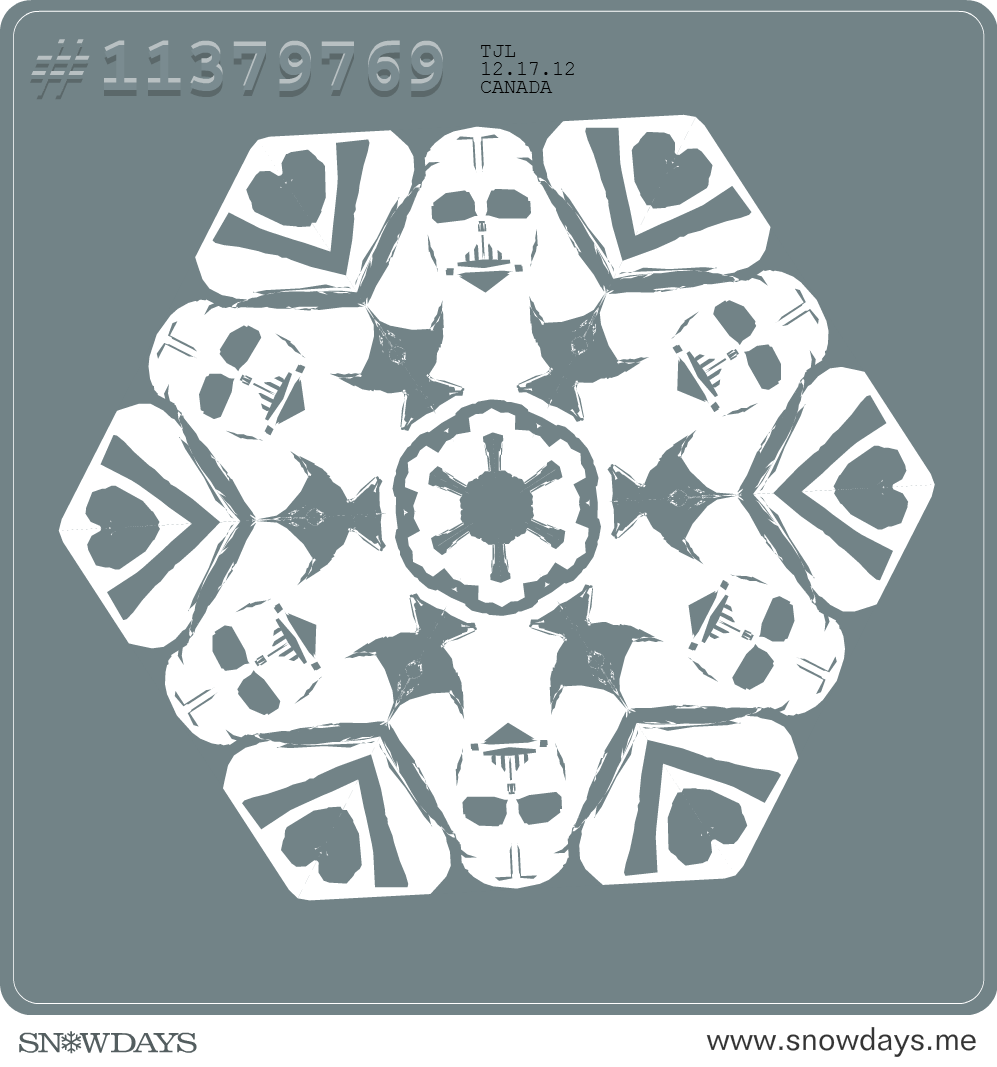
I was a frequent user of Make-a-Flake but discovered SnowDays this year. Make-a-Flake strives for authenticity: virtual scissors with sound and all cuts are straight and follow the laws of actually cutting a snowflake. SnowDays is a little more lenient. You can do polygon cutting or just click and drag cut, which allows for nice curves. The edges need not be honoured.
Plus you can view others' flakes and download them if you like them. It's a lot of fun to do. Here are some of mine.
Atom!
Mo-flake


Thanks @miken_bu and @MattersofGrey for this one!
Guitar or Dress?
Apple
I'm experiencing the craziness that is the week before Christmas doing a video workshop in an elementary school this week. I thought this might a fun way to for the teacher to save her/his sanity, the students to play and use symmetry and shape math skills too.

Thursday, 20 September 2012

Sporcle

Sporcle homepage.
My brother introduced me to this site close to two years ago, I believe. It is a collection of user made quizzes, games and trivia challenges. I have spent many free hours testing my knowledge. A few of my favourite quizzes are: The Countries of the World, The Periodic Table, and Movie Posters.
There are a wide range of categories and the days' most popular quizzes are posted on the homepage. Quizzes posted on the homepage are verified by Sporcle to be accurate.

I have mostly used sporcle as a mentally stimulating diversion, as the catch phrase says. However, being back in University has got me thinking of using sporcle in new ways, educational ways. Verified quizzes can serve as great review tools. They can also serve as an interesting way to see student's prior knowledge. If you have enough computers students can do the quizzes individually and share results or it can be a class group activity with a designated typist or clicker, there are two types of quizzes. (Parenthetically, I've recently been demoted from quiz typist when I play with my wife. I'm an inaccurate typist under pressure.) Clickable quizzes could be very Smartboard friendly, I think.

I started along this train of thought because I made my first quiz last week. I signed up, agreed to the conditions and am now a quiz master! An assignment in the math class I'm in is to make a mental math game or activity. I was immediately drawn to sporcle. My quiz is Radians to Degrees and is intended to be used as review in pre-calculus. Making your own quizzes allows you to tailor them specifically to your students' learning.

Another, and again math related, way to use sporcle is that data is kept on every quiz, every time it is taken. This allows a quiz to be used as an investigation of statistics. The percentage each answer is guessed correctly is tallied for every quiz, as well as final score. You can see if a quiz has a normal distribution or is skewed in a certain direction. You can see which answers are the most common and the least common.
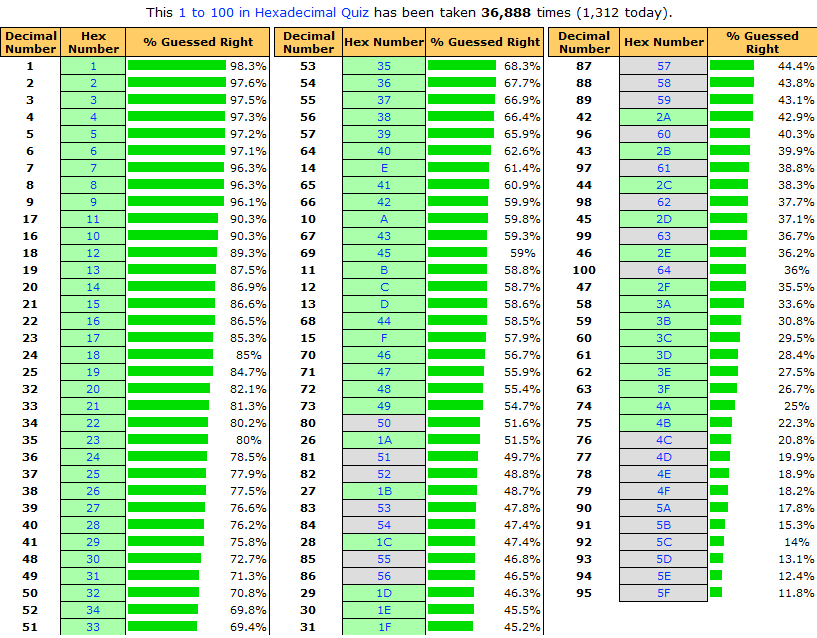
It can be a great way to move into discussion about what the statistics actually mean. The stats I've shown on the left are from the 1 to 100 in Hexadecimal quiz. It has a very even distribution, except that most people only get about 60% through the quiz. What does this actually say about the quiz? Do most people who choose to do a hexadecimal quiz only know 60% of the numbers? Or since there is a 1 minute time limit to the quiz, does it really speak more about typing speed?

I think it can be a valuable resource in the classroom. What other ways can we use it?


Thursday, 8 March 2012

ToonDoo

#1
Thanks to the wonder of twitter and @MissZadorozny and her blog I found ToonDoo today. It's online and very easy to use. I have made comics online before, using make beliefs comix, but ToonDoo takes the online comic making experience to a whole new level. There are many more characters and clips available and ToonDoo also gives me the ability to draw and create unique characters (TraitRs: not the best name for them in my opinion).
It's got me excited to make some comics and it's ease makes me think it will work great in the classroom. It makes comic creation easy for everyone. It's a great way to engage visual learners and to use the viewing and representing arts in ELA.

Thursday, 15 December 2011

flickr


flickr is a Yahoo! photo hosting and sharing service. I started using it in 2009 because, unlike facebook, it allowed me to keep the rights to my photos and alter them if, and when, I wished.
Originally I found it rather frustrating with upload limits and being unfamiliar with the process. Two things happened to change that. For Christmas my wife got me a pro account, which meant I had unlimited uploads and I downloaded the Uploadr extension. Flickr Uploadr is a downloadable program that easily allows for mass photo uploads. As well, it allows you to pre-organize your photos. I can put pictures in a set or create a new one, change the title, add a description, tag and determine the level of privacy. All this before I even upload them.
With a pro account and Uploader I have not looked back. It has been a great way to share our travels with family and friends. (Especially for ones not one facebook as I leave the vast majority of my pictures free for public viewing.) It also has been fun getting feedback from the public on my pictures. I've even had interest in some of my pictures for publications.

Flickr goes beyond just hosting and sharing though. It offers organization tools, geotagging of photos, public groups, contacts, comments, a favourite option, gallery creation, stats and a host of user created apps.
Photos can be organize in both sets and collections. Sets are akin to albums, whereas collections are thematic collections of albums. When we travel I create a collection for the entire trip and use sets for specific days or places.
My camera doesn't have a GPS, so geotagging is a labour intensive process involving remembering where I was when I took the picture and finding it on a map after uploading it. However, it was great to increase the depth of sharing our travels. People see what we're doing and also where too.
Groups are where flickr really shines. If you can think of it there is probably a group dedicated to it on flickr. I am a member of 23, Empty Seats, and STOP! Signs (Ode to the Octogon) to name a few. I created and oversee Winnipeg Expats, a group dedicated to memories of Winnipeg.
Sharing photos with groups allows your pictures to reach a wider audience and lets you see what other people with the same interests are taking pictures of.
Educationally, groups can help guide students. Doing a research project on the history of particle physics? There are particle physics groups on flickr. Want to show students what types of flowers grow in Australia? Search "flowers" taken in "Australia" on the flickr world map and there you go.
The social aspect of flickr, contacts, comments and such, is another thing that makes it great. I have contacts that I know personally and contacts that I will never meet. Their feedback has been very helpful in my growth as a photographer, as has been viewing their work.
I think flickr users are very proud of the social nature of the site and thus many people are committed to making their photos available for everyone. Flickr gives the option to add photos to the creative commons, with specific licencing options. The licencing is straight forward and easy to see on every picture. As the majority of pictures I share are of personal travels I keep my photos "all rights reserved", but share if people ask.

The sheer quantity and variety of photos available, plus added benefit of a huge selection of free to use photos, makes flickr a great tool to use in education.

Wednesday, 14 December 2011

Tagxedo

I was trying out tagxedo. It is a word cloud site like wordle, but offers some extra features. The most notable being the ability to put your word clouds in shapes! In the premium version you can even use your own photos to shape your clouds. I really love this feature.

The text I uploaded for this tagxedo is one of the few text documents I could find on my computer. Any formatted text document won't work, so here's the Open Office readme!

I chose the bomb for Open Office because it blew my mind. A free productivity suite? Yes, please. Oh, and it is going to include a database program in addition to the regular fare? I'm sold.

Thank you OpenOffice.org!

Concept Mapping

Old and New NHL Alignment (made on  Inspiration)
Overview of the features of skype (made on Mindmeister)
These are two examples of mind/concept maps I made this term. Can you tell which program I had a limited-time, free try-out with and which is free to download? Although, I did spend more time exploring and working with Mindmeister, so perhaps I'm not giving Inspiration the credit it deserves.
Concept mapping (what I prefer to call it) is a visual way of arranging and organizing information. Thinking about it, family trees were the original concept maps. They are a great way to show connections with branches moving out from a base and themselves branching out into new information.
Working with them on multiple occasions throughout the year I have to say they aren't how I prefer to organize things.  I guess I'm more linear. I like to just write things out and use bullets when I can.
However, I realize that everyone has different learning styles and will introduce mind mapping to my future classes to given visually oriented students a valuable tool.

web 2.0


I'd heard of web 2.0 before, but that was really it. I did not pay much attention to the term.
Now I know that web 2.0 describes the shift in the web from text based, consumer content to multimedia based, interactive/collaborative content.
I think two things are responsible for the shift to 2.0 - computer capabilities and the ubiquitous world wide web. When I first got the internet and had to suffer through all the electronic screeches and howls of the modem connecting I would curse a website that included a picture. It would triple to octuple the load time! Now that modem speeds are approaching c and computers can process things even faster the shift to 2.0 makes sense. It's almost impossible to find a site without an image now.
The fact that the internet is pretty much everywhere, even on our phones, in addition to improved computer capabilities makes collaboration possible. In my lifetime I started with only opening one window at a time and had a click-and-wait mentality. If I went too fast or opened too much I was just asking for a crash. (Mind you I've never owned a Mac, perhaps I'd have a different perspective if I had.) Now, I can have seven tabs open in my browser, have desktop gadgets and skype running in the background and still be working on a document that 10 other people are editing simultaneously. The web has come a long way.
I don't think I can do justice to just how pervasive web 2.0 is. Luckily there are many other sites that have attempted to do just that. Go 2 web 2.0 is just one example. The screen shot I've provided shows just a fraction of one of the seventy-two pages of web 2.0 applications the site links to!
Flickr, Google Docs, Facebook and Twitter are all major 2.0 applications I use on a regular basis.
Looking at web 2.0 with web 2.0

Blogger


I have been a blogger user since 2009. I set it up when I moved to New Brunswick as a way to share and stay in touch with family. I am comfortable with it and thus chose to do my summative project as a blog.
Mosaic view on my personal blog.
There was only one wrench thrown in the process. Blogger has recently released dynamic views, which are a series of new templates that layout and display your blog in dynamic new ways. Originally I set up ICTyler with the mosaic dynamic view. It makes thumbnails of your posts. If you have a picture it uses it, otherwise it highlights the initial text, and arranges them in mosaic form. The size and position vary slightly each time you come to the blog. I really enjoy it. However, with dynamic view templates there is a header bar that enables users to switch between all seven views at their leisure. If I were to stick with dynamic views I would lose control of how my blog would be presented to the world. I found a way to potentially overcome this though. In the advanced template setting I can change the dynamic view bar background and font colour. I set them to be the same and when people visit the blog they are none the wiser.
So, I'm feeling confident. I have a hip, new layout and it's going to stay that way. Then I remember gadgets. I remember labels, blogrolls, rss feeds and all the great sidebar content possible in blogger. Dynamic views does not have this. Why have I been labelling posts? How can I share useful resources with everyone who comes to the blog, without them having to somehow find the right post?
It was for this reason I switched back to one of the original templates. I modified it to my liking and have been able to add twitter feeds I feel are valuable resources. Posts can be organized via the archives or the label cloud. I hope to add a useful link bar, blogroll and slideshow of my pictures among other things. I think the many uses of gadgets outweighs a flashy layout for what I want to accomplish here.

Prezi


Prezi is a web-based alternative to the standard PowerPoint/Keynote presentation. It uses dynamic motion, including panning and zooming, between sections of a digital canvas to present presentations in a whole new way.
At first I was intimidated by Prezi. The old adage is that we fear change and Prezi's style is a dramatic change from what I was used to. I signed up for an education account when it was presented in class and even watched the tutorial videos, but I didn't go any further. I couldn't think outside the slide.
However, other classmates could and they presented their Prezis in other classes. They were visually stimulating and engaging. Their great work allowed me to make the shift to motion. I decided to make a one myself.
I was working on an inquiry project on dyslexia with Kelsey and we had modified an assessment framework for how to proceed if you notice one of your students has reading difficulties. It was represented as a flowchart. I decided to convert our adaptation into a Prezi.

I thought the spiral enabled everything to be close together, yet show a definite progression through the steps of the process. The design and colouring choices were to match the website we'd created to share our findings with the class.
Prezi has a host of web 2.0 features: public access (if desired), collaborative editing, and multiple sharing options (facebook, twitter and embedding, as I've done above). It also allows multimedia to easily be incorporated with simple tools to upload images and video built in to the editor. I also appreciate that I can download any of my Prezis, and any public one that the author has given access to, and present them offline. Some schools may not have a wireless network and bringing an entire class to the lab for a two minute presentation on the scientific method, to pick something at random, may not be productive. Or one day, inexplicably, the network may fail or the server will crash. With my offline copy on a flash drive none of these situations need change my plans. I can present worry free.

Google Docs


I had some experience with Google Docs before this class. I used it mainly as cloud storage. It was helpful for having resumes and important documents available anywhere when my wife and I were traveling.  I had only really experimented with the word processing aspect of it before this class as well.
I'm so happy that Google Docs was covered early in the course. Learning about its various capabilities beyond word processing and the collaborative benefits has revolutionized how I've worked on assignments in all my courses.
Collaboration = doubleplusgood!
This is what really blew my mind about Google Docs. I still remember the class all simultaneously logged into the Hopes & Fears document with it projected for all to see. The multicoloured cursors creating, altering and destroying was like a digitized fireworks display. While it may not have been very productive at the time, the implications of this activity have set off fireworks in my head that have been very productive indeed.
Group work has been revolutionized. Finding a time and place to meet that works for every group member has always been one of the most difficult aspects of group projects in my experience. The ability to work on a collaborative file, accessible to each group member and updated in real-time vastly reduces this difficulty. A specific time and place for everyone is no longer required. Individual work time and a deadline is all the is required. If I have to work when everyone else is working on the project, I can simply see the changes the next day when I sign in (and everyone else is now working) check the chat and start on my section. This works amazingly well for busy university students trying to juggle multiple courses' workloads and very often jobs as well.
Capabilities
In general, the Google Docs suite is lacking the advanced formatting and stylistic capabilities that dedicated, downloadable programs have. However, Google Docs is more than capable of managing my day-to-day needs, as it is rare that I need to utilise the aforementioned advanced capabilities.
Google Docs now provides the following:
Documents - An intuitive, easy to use word processer. I've used it for brainstorming, lesson plans that were accessible at school just by saving them and to share projects with group members.
Presentation - It's strange that I want to call it a Google PowerPoint, but it simply is what it says it is: a presentation maker. It's lacking in animations with the only animation option being to reveal points to be revealed one after the other. Perhaps though, especially with presentations, simpler is better. I've used it to create a presentation on Writing-to-Learn strategies for Instructional Methods with a group. Everyone created their own slide individually, but since it was on a shared presentation it was ready as soon as the last person finalized their slide. There was no compiling and reformatting.
Spreadsheet - the capabilities of a collaborative spreadsheet program are mind boggling. So far, I've only used it to keep track of and collectively play McDonald's Monopoly with family. (Sadly, even with three couples playing together we didn't win any major prizes.) Its uses go far beyond this, though. I can imagine worldwide research projects where data can be input on site, with real-time analysis through the spreadsheet formulas and functions. Businesses could do likewise with sales data and discover trends as they are happening.
Form - Allows you to create questionnaires and forms. The collaboration feature makes sending them out and tabulating responses very easy.
Drawing & Table - both are relatively new in the Google Docs suite and allow you to create pictures and various types of tables and graphs. I have a feeling that a collaborative drawing could get pretty hectic.
Collections - While collections are not a specific capability of Google Docs in terms of creating files, they are a very helpful function that allows users to organize files however they see fit. Simply create a collection (a.k.a folder) and store created files in them. I have collections for each of my courses, what I did during student teaching, and resume and job related files. The great thing is that collections can also be shared with others.

Google Docs is incredible! I will continue to make use of it myself and will use it as a tool to enhance collaboration in my future classroom.


Tuesday, 13 December 2011

twitter


For some reason I was a twitterphobe before this class. I guess I just saw it as a universal facebook status update or text message and I already do those things, so why add twitter to the mix.
When I first signed up in class I was not expecting much. I used it mainly as an alternative way to communicate with people I already knew. I stuck with it, though, and have learned a few things that convince me twitter is a very valuable resource to educator.
Some eye catching WFP tweets.

1. News - I followed the Winnipeg Free Press, and boy do they tweet a lot, but I found twitter delivers me news exactly how I like it: in 140 characters or less. Anything that catches my eye, I click the link and get the full article. It's the news I want, when I want it.
I also like how twitter has turned everyday people into reporters. With hashtags, searchability, and an open audience I can find live opinions on any topic I can imagine. Often breaking news is trending on twitter before traditional news media even has a response.
2. Lists - my experience with the sheer quantity of Winnipeg Free Press tweets led me to experiment with twitter lists. I created a news list and put WFP in it. I then unfollowed WFP. Their tweets are no longer filling up my timeline, and yet whenever I want to browse the news I head to my list and its all there.
3. Links - I think the true value in twitter is in links. Both the links we forge with others and the links shared in tweets. Since I joined for ICT class the first person I followed was miken_bu and I've found the links he's shared very informative. Then I checked out who he was following. Subsequently, I am following edutopia, artsintegration and mbteachers. They are a daily source of great resources, ideas and things that make me go hmm. My next step is to investigate who they follow and who follows them to forge even more links in an ever growing online community centred on education.
I plan to continue to use twitter to foster links with educators and share resources and ideas.
My twitter homepage.
I'm Tyler_JL if you want to follow me.

Monday, 5 December 2011

Animoto

I had wanted to title this Kangaroo Island but forgot, so here is my Animoto creation, Untitled Project


Try our video maker at Animoto.
Animoto automatically makes videos around a chosen theme, imported pictures, and text. Free videos are limited to thirty seconds, four plus of which are taken up with the Animoto advertising at the end. Longer videos are available if you purchase a subscription. I would assume that the final ad would be much smaller, or non-existent, on the longer videos. However, I haven't subscribed so I can't say, but it makes sense to me.
I wish there was a theme preview I could see when I am choosing my theme. They were all static thumbnail images and I had to chose one without knowing how it would display, and transition between, my pictures.
All that being said, Animoto is easy and fun. I especially liked the suggestions given in class as to how it could be used: Mini-stories, Phys-Ed skill demonstrations, even Christmas cards! I think Animoto would be very effective as a summarizing tool. Say a student read War & Peace (it was the personal choice reading assignment...) and they could do the book review, but really that could be the length of a normal novel. Here comes Animoto! The challenge is to summarize the novel in pictures, in 30 seconds. This forces students to pick out important information and interact with the text in a new way. I use an English example because I'm familiar with English, but I believe it can be an interdisciplinary tool.

On a side note, here is the shortest review of War & Peace I could find in ten minutes of searching that also was thematically relevant to this post. It's almost two minutes and doesn't actually say anything about the book, aside from it being very long. 

Sunday, 4 December 2011

Weebly

For the classroom website assignment I chose to use weebly, as I already had experience with blogger and a lot of google products and wanted to try something new.
I found the weebly editor incredibly easy to use. I've spent a lot of time tweaking my personal blog design over the years and weebly is very intuitive. Your page is displayed on the lower section of the browser window and you click and drag features from the editing from to where you want them on your page. I was impressed by the wide variety of elements available. I signed up with weebly for education and the education specific elements, like the homework submission form, were excellent.
Setting up links was easy and I liked that I was able to create links to other site pages. This feature, combined with the ability to hide pages from the navigation bar enabled me to create many specific pages, like a grade nine course outline, but not clutter up the navigation bar.
While there are many templates available, I found them to be very restrictive. The only modifications an average user can make to the template is the link colours, font type, colour and size. There is an option to edit the HTML/CSS, but I'm not proficient at it and so for me it isn't really an option. I would have liked the ability to modify the height of the title picture, colour of the navigation bar, etcetera. I felt limited being unable to tweak the template to my liking.
Overall I found weebly to be a great tool for building a website, but in the future I think I would use a service that allowed me more freedom in modifying design.

Saturday, 3 December 2011

Movies

was very helpful in diversifying lessons and content in class. During Macbeth I frequently used short video summaries of each act, often made by students elsewhere in the world, as a reactivation before going on to the next act. (e.g. - ACT I Summary, Macbeth Rap) With this, I discovered the joy of play lists. I can group similar videos and not have to waste time finding the next one I want to show. I created Macbeth, Diversity, and Social Justice play lists as thought provoking activations for new units.
However, when in student hands I found YouTube could be distracting. When I arrived at my placement a few students were finishing up a music interpretation lesson in ELA. They had to analyse the lyrics of a chosen song and the music video as well. Often after watching their chosen video students would just start watching another and then another. A majority of my cooperating teacher's time was taken up with reminding students to stay on task.
On reflection, I don't think this would have been any different if these students had been analysing poetry in a collection. I think there will always be distractions and I won't let a useful tool like YouTube go to waste because of them.

The above is a demonstration video I made for tutorial lesson on Windows Movie Maker. This lesson was to ensure everyone was comfortable in editing video for the following project where groups would make videos celebrating diversity. I created this by hand drawing each frame and then taking a picture of it. I made use of Movie Maker's transition, panning and zoom effects to simulate movement.
When I presented it to the class they were amazed I was able to make something like this and even more so when I told them I had uploaded it to YouTube. I then had each student open Movie Maker on their netbooks. I had previously copied some of the pictures I used to make my movie onto each student's account. They followed along as I modelled how to import files, arrange them in the timeline, edit length, add transitions and effects, and make subtitles and credits.
Once the students had practised the skills, I had them apply them in making unique mini-stories from the pictures I had provided them. I was then free to offer individual assistance, circulate and observe.
This lesson enabled the students to approach their major video project with confidence, which in turn allowed them to let loose their creativity.
The one issue I had with Movie Maker is that it is very picky as to which formats it allows in the program. Mp3, one of the most well-known and widely used audio formats, is incompatible with Movie Maker! If you add it to a movie project it will appear to be there and you can edit it like you would any other audio, but it prevents a movie project from being exported to a movie file, which is the whole purpose of Movie Maker. I learned this the hard way, when every group was unable to save their projects as videos. It took me hours of  troubleshooting and poking around to discover the solution and luckily was able to quickly find an online audio format converter to change the mp3 files to wmv (I can't believe I said that...).

Movies, whether used to diversify lessons or as a medium for student expression, are a great tool for the classroom.

Thursday, 13 October 2011

Striking & iGoogle

So, the faculty is on strike and now I have some time on my hands. I've decided that instead of spend it worrying about what will happen with my student teaching I'll try to use it in a productive manner. After all this is meant to be a summative reflection on the year.

I've just been zoning out on iGoogle. This is another second discovery for me in this class. I found it first when I was in New Brunswick working in a French school. If I was caught up on my prep for the day I would quite often find myself wandering there. I'd prettied up each page with appropriate backgrounds and themes. The best was the Legend of Zelda theme for my games page. I can see how the idea of having all of your favourite sites and important information on one page would be beneficial.
No Picture? http://sha3teely.com/?cat=8&paged=2
However, iGoogle has never been more than a passing interest for me. I could be writing this post in my blogger gadget on my page, but here I am in blogger typing away because I find a lot of the features of gadgets are pared down. I can't attach files in the blogger gadget, nor the gmail gadget either. I'm not always going to want to put a picture into a blog post, or attach something in an email, but since I often do, I go to the actual site automatically. Why get halfway through something only to have to switch to finish it how I want?
I'm running Windows 7 on my laptop and have many gadgets running as part of my desktop display. Why open iGoogle and check the weather when it is already being displayed on my desktop?
One thing that does hook me is games. I can search through and add games I like and then just have them together on one page always. I don't have to go to popcap for one game and shockwave for another. As a result I spend hours going from one game to another being quite unproductive.
In the end, I believe I don't stick with iGoogle because I'm an inomad. I like to wander from site to site, to have many tabs open. I like typing in URLs or following link trails. When iGoogle brings everything to me I feel like I go nowhere. I want to be up and moving, to be dynamic, digitally fit one could say.

Monday, 3 October 2011

http://www.google.ca/search?source=ig&hl=en&rlz=&q=Tyler+Letkeman&oq=Tyler+Letkeman&aq=f&aqi=g-v2&aql=&gs_sm=e&gs_upl=2796l4499l0l4811l14l12l0l4l4l1l265l1257l2.3.3l8l0

My Digital Footprint

For the most part I'm rather proud of what comes up when search myself online. None of the facebook or twitter results are me. My flickr profile shows up, so people can see pictures of my travels. If I keep scrolling down my placement in a high school Canadian Association of Physicists exam shows up (17th in Canada, woot woot!).

However, there is one area that gives me concern. In high school I read a lot of fantasy novels, I still do I guess, but I combined my love of this genre with my love to draw and created an account on elfwood, a sci-fi/fantasy fan art site. My profile is still there as are my pictures. While nothing of mine on this site is inappropriate, I do find it somewhat embarrassing. Looking back at these pictures I no longer consider them the height of my artistic achievement.

There doesn't seem to be a way to change this though, as the email I used to create my account no longer exists so I can't reset my password and the forum to contact the site moderators is down and under construction. I guess I'll just have to live with a little embarrassment in my digital footprint, knowing it's much better than having to scour and remove inappropriate content.

Friday, 30 September 2011

wordle

I had previous experience with worlde coming into this class. One Christmas we got wordles in frames of our personality traits our families had identified. They are part of the decor of my livingroom. At the time I thought it was a neat idea, but after a while just kind of forgot about it.
Some thoughts on wordle in a wordle.
Then it was one of the first things we tried out in class and I still like it. It has been a big hit across the board. I'm using a wordle in my class website and I've seen them in presentations in most of our other classes so far.
What I like most about wordle is its potential as a graphing tool as words that appear more frequently are larger. I could poll a class for four words they think of when I say blue, for example, and then compile the results into a wordle. The result shows all the words the students came up with but also shows which words are most frequent and by extension most widely associated with blue.
The fact that it's visual and can become an evaluative tool as well makes wordle a very useful application.